 QuickMerge
A Mac may open a HEIC photo without difficulty, yet the recipient’s website still requires JPG. The task is to export a compatible copy. Keep the HEIC original if you may edit the photo again or need its camera information later.
Choose a native export or a browser batch
Preview is a direct choice for a photo already stored on the Mac. A browser converter is useful when you want the same queue-based workflow used on other devices. Neither route makes a JPG preserve all HEIC features: JPEG is a still-image, lossy format.
If the image lives in Photos or cloud storage, ensure that you are exporting or selecting the full original rather than a thumbnail. For an important image, compare both methods on one file before committing to a large batch.
Export one image with Preview
- Open the HEIC file in Preview and choose File → Export.
- Choose JPEG in the Format menu. Adjust the quality setting based on the recipient’s needs.
- Choose a distinct filename or destination folder and save the copy.
- Reopen that JPEG and inspect its dimensions, orientation and fine detail.
Apple documents the Export format control and JPEG quality adjustment. If a format is unavailable for a particular source, check the actual menu rather than changing the filename extension. Different image types can expose different options.
Use the conversion queue for several images
Open HEIC Converter, select a small group, choose JPG and start the batch. Review the status of each item before downloading the outputs or ZIP. Extract an archive to inspect the individual images rather than treating its existence as proof of complete conversion.
Separate compatibility, quality and metadata
A JPG that opens everywhere can still be too large for a portal. If further compression is required, work from the original export and compare the final detail. Repeatedly saving progressively compressed copies can damage edges without delivering a useful benefit.
A color difference may reflect high-dynamic-range conversion or color-management differences between viewers. Check in the software the recipient uses when appearance matters. Metadata, depth data and motion are separate from the visible still image, and should not be assumed to survive the export.
Sources and checks
Preview can export selected images in another format. Check the saved format and image quality before deleting an original. Apple: converting image formats in Preview.
A checked example
Synthetic examples checked in Chromium on Linux, September 9, 2026. The HEIC input is a licensed sample.
The browser-converted sample is a 351,952-byte JPEG. When comparing a Preview export, use the same original and inspect both saved copies at the same scale. The converter example records the browser output’s format and dimensions.
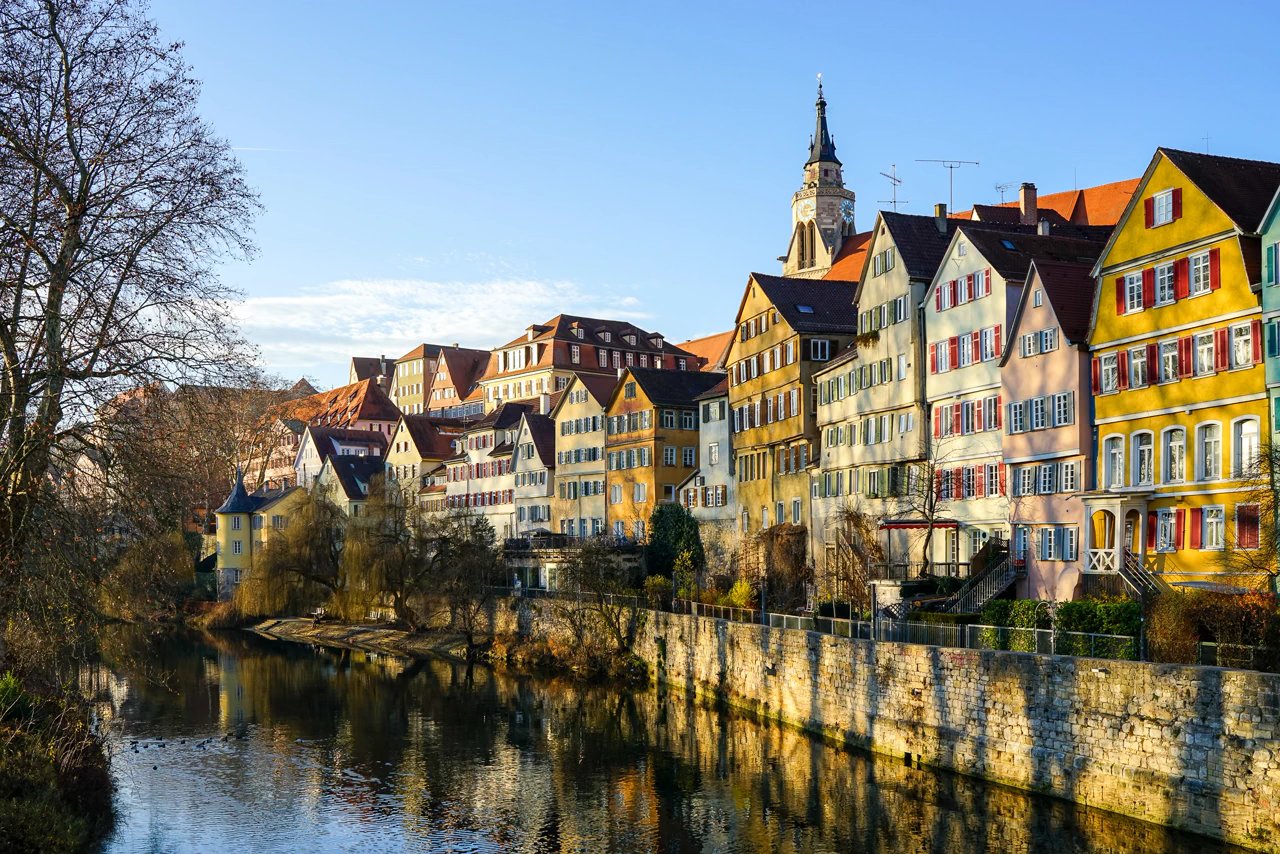
When a HEIC contains multiple images, this tool saves only the first decoded image. Preserve the original container.
Frequently asked questions
Is JPG different from JPEG?
The extensions commonly refer to the same JPEG image format. Converting HEIC requires re-encoding the image; shortening or changing its name does not do that.
Do I need to install a converter app?
For files Preview can read, its built-in Export command may be sufficient. The browser route loads its processing library when needed.
Can I make the JPG identical to the HEIC?
You can make a useful visual copy, but JPEG uses a different lossy representation and does not retain all HEIC container features. Keep the original.
Before you finish
Use the checks above on the saved result before replacing your original.
Content revised .
Added inspected example outputs and corrected the relevant workflow limitations.

Maintained by Mehran
Founder of QuickMerge. Responsible for this guide and its corrections. Connect on LinkedIn.
Spotted an error? Report a correction. How these guides are written, tested and cited is set out in the editorial policy.