Open Tools Tools Features Blog About Contact Proof of Privacy
Guide

How to Convert a Screenshot to Excel (Without Uploading Your Data)

August 6, 2026
6 min read
By Mehran

Every tool in this guide is 100% private — your files never leave your browser. No uploads, no servers, no sign-up.

Two routes for getting a screenshot of a table into Excel The upload route sends the image to a company server before returning a spreadsheet. The on-device route keeps the image inside the browser tab and produces the same spreadsheet without any network transfer of the image. Your screenshot table.xlsx the same file Upload route your image on their server On-device route never leaves the browser tab
Both routes hand back the same spreadsheet. Only one of them makes a copy of your data on somebody else’s machine.

Someone sends you a table as a picture. A supplier portal shows the line items on screen and offers no export. A dashboard renders the numbers beautifully and gives you nowhere to click. The data is right there, and the only obvious route into a spreadsheet is retyping it.

It does not have to be. Optical character recognition can read a captured table and rebuild it as rows and columns, and — this is the part most tools get wrong — it can do that without your image ever leaving your computer.

Why the data ends up in a screenshot at all

Almost every case comes down to a system that will show you data but not give it to you. Banking sites display transactions and offer a PDF at best. Analytics dashboards render tables that no button will export. Invoices arrive as images inside an email. Slides embed a table as a picture because it looked neater that way. Somebody photographed a whiteboard.

In each case the numbers exist as pixels rather than as text, so the usual copy-and-paste route is closed. A screen capture is the fastest way to grab them, and OCR is the only way back out.

The upload problem nobody mentions

Search for a screenshot-to-Excel converter and most results work the same way: you pick an image, it goes to their server, a spreadsheet comes back. That flow is invisible and it feels harmless, but it is a data transfer. Your invoice, your payroll table, your patient list, your customer export — now on someone else’s infrastructure, subject to their retention policy, their access controls and their breach history.

For a screenshot of a public web page, nobody cares. For anything covered by an NDA, an employment contract, GDPR or HIPAA, it is exactly the kind of transfer that policies exist to prevent. Plenty of people paste sensitive tables into a free converter without ever thinking of it as sending the data somewhere, because the interface never uses that word.

The alternative is straightforward: run the recognition in the browser instead. Modern browsers can execute a full OCR engine locally, which means the image is read from your disk into the page, processed there, and turned into a spreadsheet there. Nothing about your data is transmitted at any point, so there is no server-side copy to trust anyone with.

How on-device OCR reads a table

It is worth understanding the mechanism, because it explains every failure you are likely to hit.

The recognition engine scans the image and returns, for each word it finds, the text and a bounding box — the rectangle that word occupies. That gives a cloud of positioned words rather than a table. The structure is then inferred from geometry: words sharing roughly the same vertical position belong to the same row, and within a row, a horizontal gap wider than normal word spacing marks a column boundary.

That is why a table with clear spacing between columns converts cleanly and a table whose columns nearly touch does not. The engine is not reading borders or understanding the layout. It is measuring gaps.

The four steps

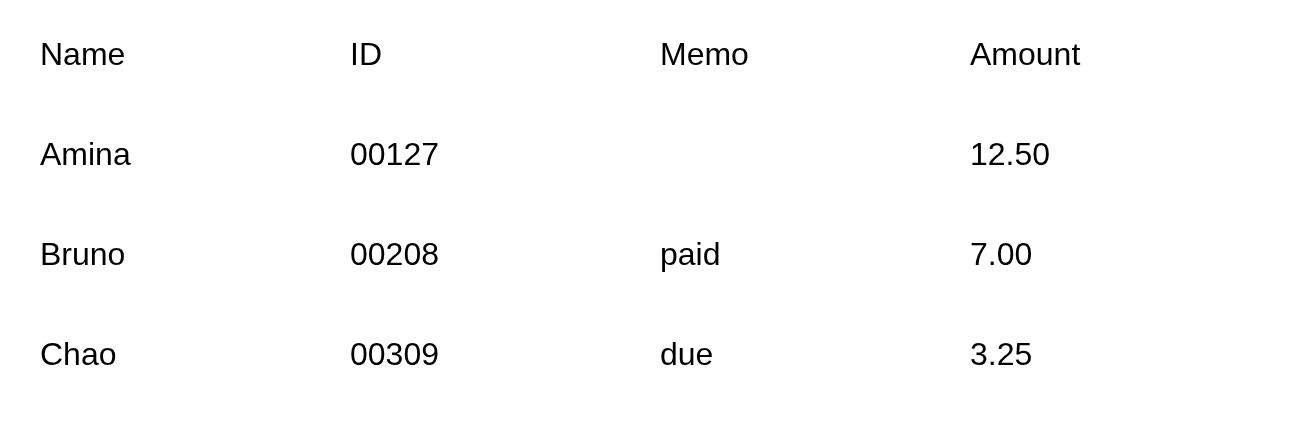
  1. Capture the table as large as you can. Zoom the page or document until the table nearly fills your screen, then capture. On Windows, Win + Shift + S; on macOS, Cmd + Shift + 4. Both let you drag a box around just the table.
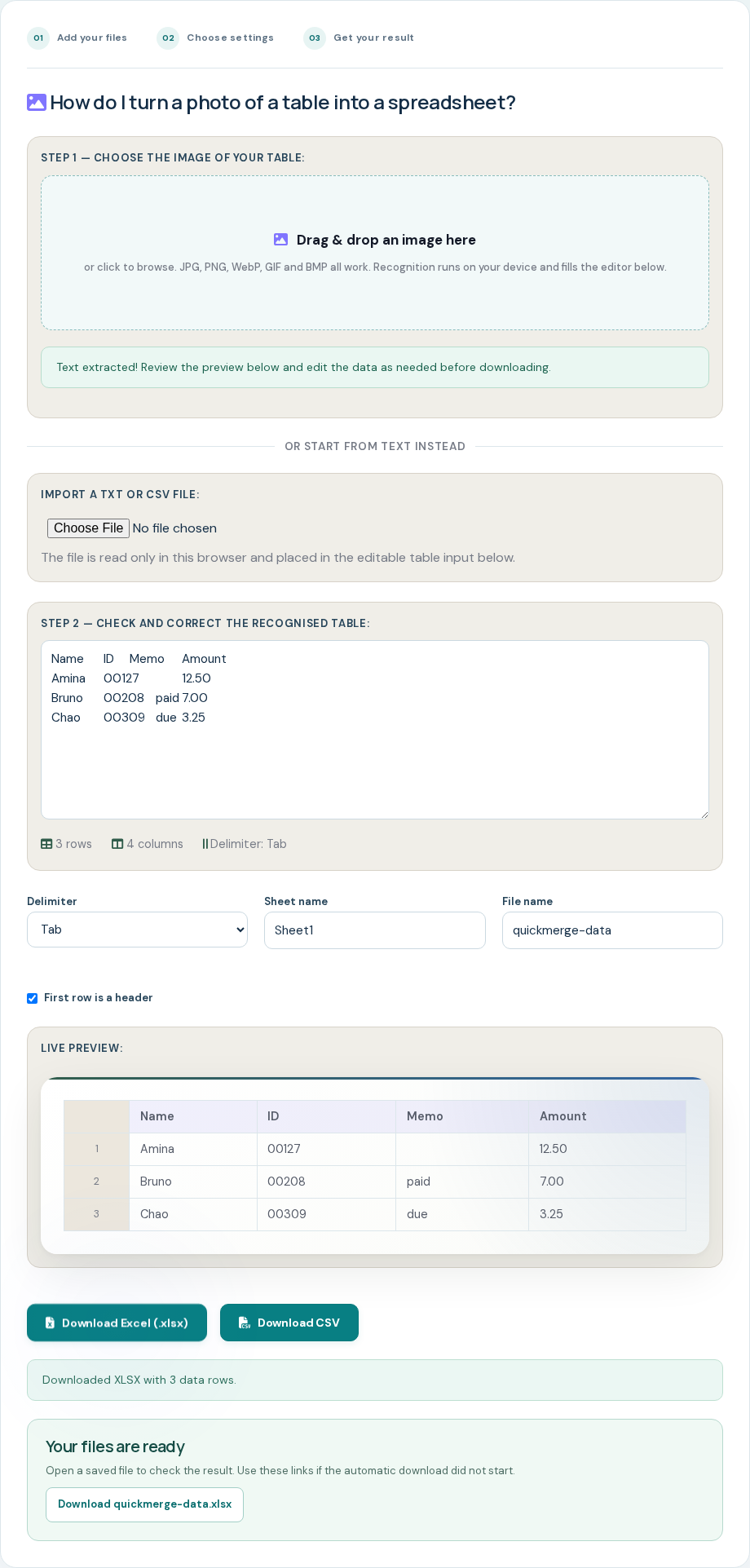
  2. Open the converter and drop the image in. The screenshot to Excel tool starts recognition as soon as it has the file. The first run is slower than later ones because it downloads the recognition engine and its English training data; after that they are cached.
  3. Correct what came back. The recognised rows land in an editable box with a live preview of the finished sheet underneath. This is not an inconvenience — it is the whole safety mechanism. Fix misread characters here, and change the delimiter if a column split in the wrong place.
  4. Download the spreadsheet. Name the worksheet and the file, then take the .xlsx. It is a genuine Office Open XML workbook, so numbers arrive as numbers and sorting works immediately in Excel, Google Sheets, LibreOffice or Numbers.

What actually decides accuracy

Three variables account for nearly all of the difference between a clean conversion and a mess, and you control all three before the image ever reaches the tool.

Character height

This is the big one. Recognition works on pixels, so a character rendered fifteen pixels tall gives the engine far more to work with than the same character at eight. Zooming in before you capture costs you two seconds and improves the result more than anything you can do afterwards. If the text looks small on your own screen, it is too small for OCR.

Compression

Screen capture tools default to PNG, which is lossless — every pixel is exactly what was on screen. A JPG that has been re-saved a few times, forwarded through a chat app or pasted into a document and pulled back out, has soft and smeared letter edges. Those artefacts are precisely what confuses character recognition. Keep the original PNG wherever you can.

Column separation

Because columns are detected from gaps, tables whose columns nearly touch will merge. If you can widen the columns on screen before capturing — dragging a column divider in a web table, for instance — do it. Where you cannot, expect to split those cells manually afterwards.

One more habit helps: crop to just the table before converting. Menus, sidebars and page furniture around the table are words the engine will dutifully recognise and hand you as extra rows.

Checking the result before you trust it

OCR does not fail loudly. It hands back something that looks right, which is more dangerous than an error message. A handful of checks catch nearly everything:

  • Count the rows. If the source had 24 lines and you have 22, two rows merged.
  • Check any total. If the table has a sum, re-add the column in the spreadsheet and compare. A mismatch localises the error instantly.
  • Look at the ambiguous characters. 0 and O, 1 and l and I, 5 and S, 8 and B. These are the misreads that occur most, and in numeric data they are also the ones that matter most.
  • Scan the first and last row. Header text and footer notes often get pulled in as data.

None of this takes long, and all of it is faster than retyping. Think of the tool as removing the typing, not the checking.

Frequently asked questions

Can I convert a screenshot to Excel for free?

Yes. QuickMerge’s screenshot to Excel converter is free with no account, no trial and no export limit. Because the conversion runs on your own device rather than on a server, there is no per-file cost to pass on.

Is my screenshot uploaded to a server?

Not by this tool. The image is read into browser memory, recognised there and turned into a spreadsheet there. Closing the tab clears it. The recognition library itself is fetched from a public CDN and downloads its English training data on first use, but those requests carry no part of your image — you can confirm that in your browser’s network panel using the method on the proof of privacy page.

What image format should I use?

PNG, which is what every operating system produces by default for a screen capture. It is lossless, so letter edges stay sharp. JPG works but loses a little accuracy, especially if the file has been re-saved or passed through a messaging app.

Why did two columns merge into one?

Columns are detected from the horizontal gap between words, so columns that nearly touch on screen read as a single column. Widen them before capturing if you can, or split the values in the editor before downloading.

Does it work on handwriting?

Not reliably. The engine is trained on printed and rendered type. Handwriting, heavily stylised fonts and low-contrast text all produce poor results.

What if I can select the text instead?

Then skip recognition entirely — copy it and use text to Excel. Selectable text converts exactly, with no misreads to check, and it is much faster.

In short

The short version: capture large, keep it PNG, crop to the table, then check the totals. Do that and screenshot-to-spreadsheet stops being a retyping job and becomes a two-minute one.

And there is no reason to give your data away to do it. Recognition that runs in your own browser produces the same spreadsheet as a service that uploads your image, minus the copy on someone else’s server.

Convert your screenshot now

Free, no account, and the image never leaves your browser.

Open the screenshot to Excel tool
Mehran, founder of QuickMerge

Written by Mehran

Founder of QuickMerge. Practical guides built around the real behavior and limits of the tools. Connect on LinkedIn.