 QuickMerge
Browser-based conversion — pasted text and selected files are not sent to a QuickMerge processing server.
Image to Excel Converter
Short answer: To turn a photo of a table into a spreadsheet, add the image, review the extracted cells and download the workbook. QuickMerge performs the extraction in your browser without sending the image to a server.
Convert a picture of a table into a real Excel workbook. Drop in a photo, a scan or a screenshot: on-device OCR reads it, you fix anything it misread in the preview, then download the .xlsx. The image never leaves your browser.
- Free to use
- No sign-up
- Real .xlsx output
- Runs in your browser
- No uploads
How do I turn a photo of a table into a spreadsheet?
Drag & drop an image here
or click to browse. JPG, PNG, WebP, GIF and BMP all work. Recognition runs on your device and fills the editor below.
The file is read only in this browser and placed in the editable table input below.
How to convert an image of a table into Excel
- Choose your image. Drag a screenshot, photo or scan into the upload box, or click to browse. Nothing is sent anywhere — the file is read directly by this page.
- Wait for recognition. The first run downloads the OCR engine and its English trained data, so it takes noticeably longer than later runs. A status message tells you what is happening.
- Correct what it misread. The recognised table lands in the editor as tab-separated rows and the live preview shows exactly how the spreadsheet will look. Fix characters, merge or split columns, and adjust the delimiter if the columns did not separate the way you wanted.
- Name it and download. Set a worksheet name (Excel allows up to 31 characters) and a file name, then download a real
.xlsxworkbook or a plain CSV.
What kind of image works best
- Screenshots of on-screen tables — use a clear source with readable glyphs and aligned columns.
- Flatbed scans of printed tables — start with a straight, sharp scan; around 300 DPI can help printed text, but is not an accuracy guarantee.
- Phone photos — workable if you shoot square-on in even light. Angle, glare and shadow are the three things that break recognition most often.
- Not suitable — handwriting, heavily stylised fonts, tables where columns nearly touch, and images where the text is smaller than roughly 10 pixels tall.
Honest limits
- Recognition is English-only, so accented and non-Latin characters are unreliable.
- Merged cells, multi-line cells and borderless layouts often need manual fixing in the editor.
- Only the values are converted. Cell colours, fonts, borders and formulas from the original are not reproduced.
- Everything runs on your device, so a very large image on an old phone can be slow or run out of memory. A desktop browser handles big scans more comfortably.
- Always check the preview before you rely on the numbers. OCR misreads
0/O,1/l/I,5/Sand8/Band may miss minus signs, decimal points or empty cells.
Next steps
Before this step
- crop tightly to the table — the single biggest improvement to accuracy.
- convert an iPhone photo first — so the image can be read.
- export a PDF page as an image — when the table lives inside a PDF.
Related tools
- paste the text instead — exact, and far faster, when you can select the text.
- get plain text rather than a grid — if the layout does not matter.
Guides
- how to convert a screenshot to Excel — what decides accuracy, and the checks that catch a misread.
Browse all OCR and extraction tools, or see every QuickMerge tool.
A checked example
Synthetic examples checked in Chromium on Linux, September 9, 2026. The HEIC input is a licensed sample.
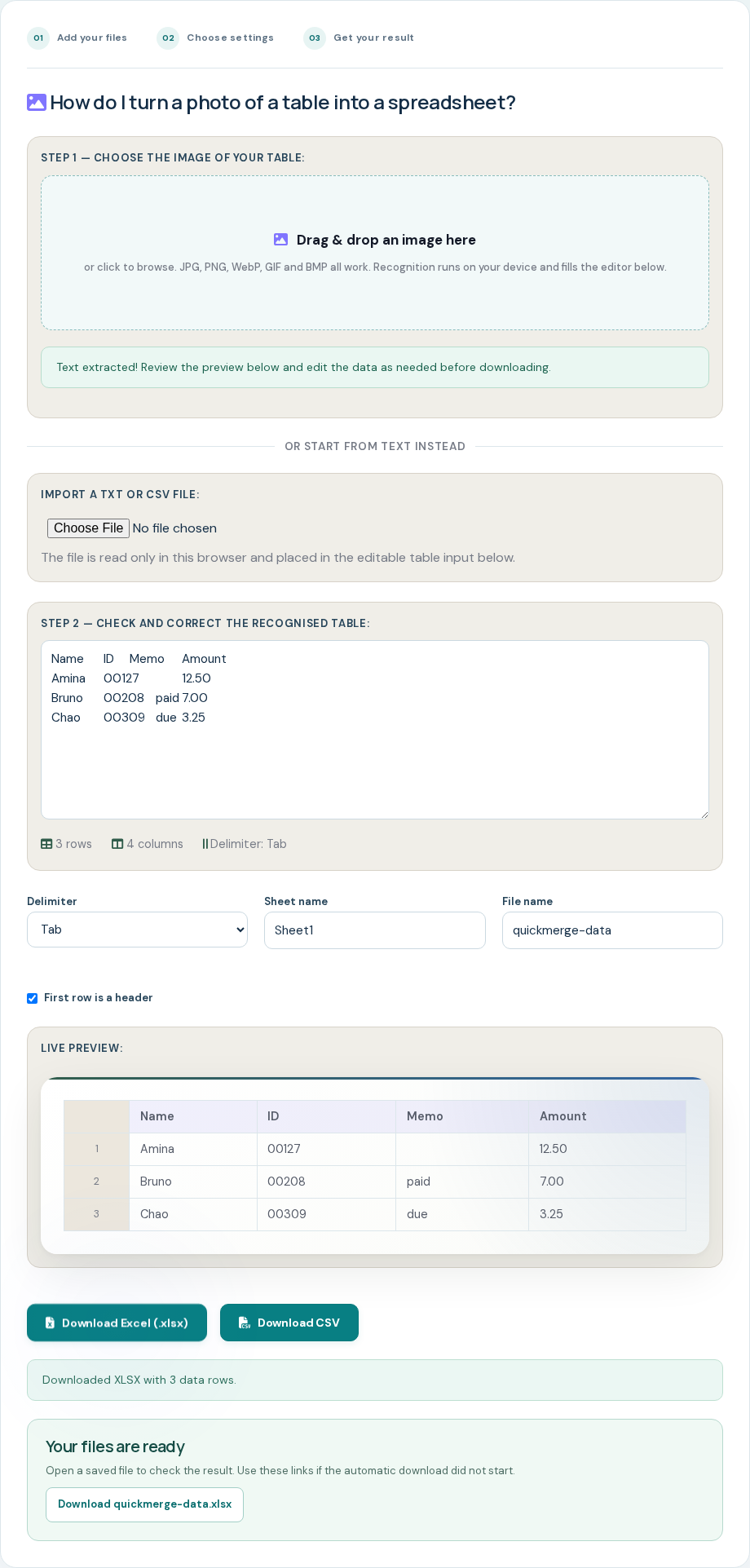
The original synthetic table has four columns and four rows, including headers. The 16 expected positions were defined before comparing OCR. In this one run, 14 positions matched exactly. The empty Memo cell in Amina’s row was lost: 12.50 shifted from Amount into Memo. This is a positional comparison, not an OCR benchmark.
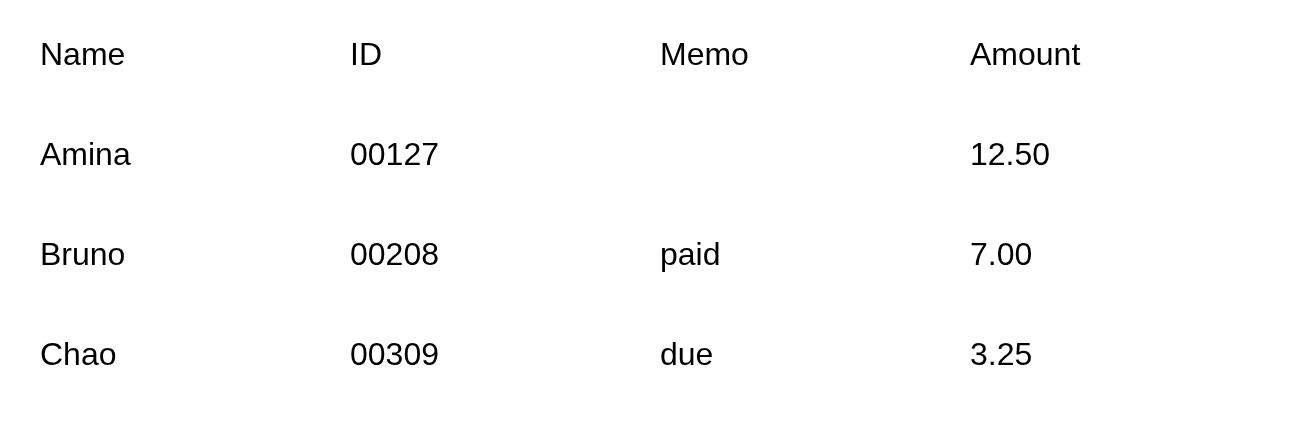
Compare actual OCR text with the image. Insert one tab between 00127 and 12.50 to restore the empty Memo cell. In the corrected workbook, IDs remain text and the three numeric amounts total 22.75. Text fallback was not used to validate recognition.
Frequently Asked Questions
Any still image your browser can decode — JPG, PNG, WebP, GIF and BMP are all accepted. The file picker accepts image/*. A PDF is not an image: to read a table out of a PDF, convert the page first with PDF to JPG, or use OCR if you only need the text.
It depends almost entirely on the image. Even a clear screenshot can lose an empty cell or misalign a row. Check each expected cell against the image. A phone photo taken at an angle, a low-resolution image, glare, shadows, very small type, handwriting and merged or borderless cells all reduce accuracy. This is why the tool always fills an editable preview rather than downloading straight away — check the table before you export it.
The OCR engine returns a bounding box for every word it finds. The tool groups words into rows by their vertical position, then splits each row into columns wherever there is a large enough horizontal gap between words. That works well for tables laid out with clear spacing, and less well for tables where columns nearly touch or where a single cell wraps onto two lines.
No. The image is read from your device into browser memory and passed to the OCR engine running in the same page. The self-hosted OCR library and English trained data must load before recognition — those requests carry no part of your image. You can confirm all of this yourself with the procedure on our proof of privacy page.
The engine finished but did not return usable words. Common causes are a very low-resolution image, a photo that is out of focus or strongly skewed, white text on a dark background, or a picture that does not actually contain text. Try a higher-resolution capture, crop tightly to the table with crop image, and make sure the table is square-on to the camera.
Yes. It is a genuine Office Open XML .xlsx workbook assembled in your browser, with ordinary short dot-decimal values written as numbers. Leading-zero IDs, long identifiers and ambiguous dates remain text; empty fields retain their positions. It is not a renamed CSV. A plain CSV download is available too.
Converting a picture of a table into a spreadsheet, and what limits accuracy
Reading a table from an image is two problems at once: recognising the characters, and working out which cell each one belongs to. The second is the harder half.
Inspect alignment before calculations
OCR groups words by vertical position and horizontal gaps. An empty middle cell can shift later values left. Compare each row against the image and insert a missing separator before exporting.
Prepare a clear table crop
Straight, sharp text helps recognition. Ruled lines, merged cells and wrapped labels can confuse word grouping. Inspect the recognized rows before saving.
Numbers are where a misread costs the most
Compare digits, minus signs and decimal separators with the image. An incorrect amount can affect later calculations without looking unusual. Correct the editable text and retain the source image for comparison after export.
If you can select the text, do not use OCR at all
When a table already contains selectable text, copy it and use Text to Excel to avoid recognition. Still verify delimiters, empty fields and cell types: copying alone does not establish correct alignment.